I perform best practice audits of customers’ Conditional Access (CA) policies on a regular basis. If you have ever done this, you will quickly notice that it can be a very intensive exercise due to Azure AD’s portal design. When customers only have a handful of CA policies it can be very easy and quick. However, when reviewing many policies it can quickly become impossible and overwhelming. When having to expand out every policy and sub config, it’s easy to forget all the options and what each policy did.
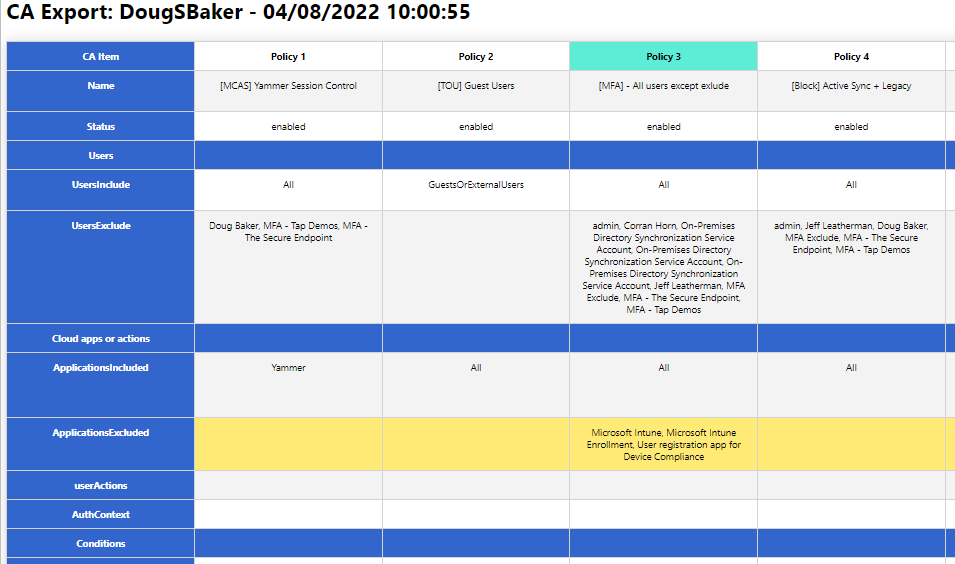
So to help with this, I wrote a Powershell script to help export these into an easier-to-audit and human-readable format. You might say, “But Doug, there are plenty of other options for exporting!” While this may be true, most of the options I found relied on GraphAPI calls that have proven difficult for clients to set up. Additionally, many of the outputs for these scripts did not help make my analysis easier. So the script below relies only on the Azure AD PowerShell module and hopefully makes it easier to read the policy configs.
Hope this helps you, and if it does send me a note and let me know. @Dougsbaker
CA-Export/Export-CaPolicy.v1.ps1 at main · dougsbaker/CA-Export (github.com)
Script Features
- Only Requires AzureAD PowerShell Module
- Exports to HTML Grid View
- Ability to highlight Control / Condition
Features I am considering adding
- Moveable Columns / Filters to hide
- Multiple output formats
- Export/Restore option
<#
	.SYNOPSIS
		Conditional Access Export Utility
	.DESCRIPTION
       Exports CA Policy to HTML Format for auditing/historical purposes.

	.NOTES
		Douglas Baker
		@dougsbaker


        ############################################################################
        This sample script is not supported under any standard support program or service.
        This sample script is provided AS IS without warranty of any kind.
        This work is licensed under a Creative Commons Attribution 4.0 International License
        https://creativecommons.org/licenses/by-nc-sa/4.0/
        ############################################################################

#>

#ExportLocation
$ExportLocation = "C:\scripts\"
$FileName = "CAPolicy.html"


$HTMLExport = $true

#Connect-AzureAD

try {
    Get-AzureADMSConditionalAccessPolicy -ErrorAction Stop > $null
    Write-host "Connected: AzureAD"
  }
  catch {
    Write-host "Connecting: AzureAD"
   Try {
    Connect-AzureAD
   }
   Catch
   {
       Write-host "Error: Please Install AzureAD Module"
       Write-Host "Run: Install-module AzureAD"
   }
}

#Collect CA Policy
Write-host "Exporting: CA Policy"
$CAPolicy = Get-AzureADMSConditionalAccessPolicy
$TenantData = Get-AzureADTenantDetail
$TenantName = $TenantData.DisplayName


$date = Get-Date

$CAExport = [PSCustomObject]@()

$AdUsers = @()
$Apps = @()
#Extract Values
Write-host "Extracting: CA Policy Data"
foreach( $Policy in $CAPolicy)
{

    $IncludeUG = $null
    $IncludeUG = $Policy.Conditions.Users.IncludeUsers
    $IncludeUG +=$Policy.Conditions.Users.IncludeGroups
    $IncludeUG +=$Policy.Conditions.Users.IncludeRoles


    $ExcludeUG = $null
    $ExcludeUG = $Policy.Conditions.Users.ExcludeUsers
    $ExcludeUG +=$Policy.Conditions.Users.ExcludeGroups
    $ExcludeUG +=$Policy.Conditions.Users.ExcludeRoles


    $Apps += $Policy.Conditions.Applications.IncludeApplications
    $Apps += $Policy.Conditions.Applications.ExcludeApplications


    $AdUsers +=$ExcludeUG
    $AdUsers +=$IncludeUG

    $InclLocation = $Null
    $ExclLocation = $Null
    $InclLocation = $Policy.Conditions.Locations.includelocations
    $ExclLocation = $Policy.Conditions.Locations.Excludelocations

    $InclPlat = $Null
    $ExclPlat = $Null
    $InclPlat = $Policy.Conditions.Platforms.IncludePlatforms
    $ExclPlat = $Policy.Conditions.Platforms.ExcludePlatforms
    $InclDev = $null
    $ExclDev = $null
    $InclDev = $Policy.Conditions.Devices.IncludeDevices
    $ExclDev = $Policy.Conditions.Devices.ExcludeDevices
    $devFilters = $null
    $devFilters = $Policy.Conditions.Devices.DeviceFilter

    $CAExport += New-Object PSObject -Property @{
        Name = $Policy.DisplayName;
        Status = $Policy.State;
        Users = "";
        UsersInclude = ($IncludeUG -join ", `r`n");
        UsersExclude = ($ExcludeUG -join ", `r`n");
        'Cloud apps or actions' ="";
        ApplicationsIncluded = ($Policy.Conditions.Applications.IncludeApplications -join ", `r`n");
        ApplicationsExcluded = ($Policy.Conditions.Applications.ExcludeApplications -join ", `r`n");
        userActions = ($Policy.Conditions.Applications.IncludeUserActions -join ", `r`n");
        AuthContext = ($Policy.Conditions.Applications.IncludeAuthenticationContextClassReferences -join ", `r`n");
        Conditions = "";
        UserRisk = ($Policy.Conditions.UserRiskLevels -join ", `r`n");
        SignInRisk = ($Policy.Conditions.SignInRiskLevels -join ", `r`n");
       # Platforms = $Policy.Conditions.Platforms;
        PlatformsInclude =  ($InclPlat -join ", `r`n");
        PlatformsExclude =  ($ExclPlat -join ", `r`n");
       # Locations = $Policy.Conditions.Locations;
        LocationsIncluded = ($InclLocation -join ", `r`n");
        LocationsExcluded = ($ExclLocation -join ", `r`n");
        ClientApps = ($Policy.Conditions.ClientAppTypes -join ", `r`n");
       # Devices = $Policy.Conditions.Devices;
        DevicesIncluded = ($InclDev -join ", `r`n");
        DevicesExcluded = ($ExclDev -join ", `r`n");
        DeviceFilters =($devFilters -join ", `r`n");
        'Access Controls' = "";
     #   Grant = ($Policy.GrantControls.BuiltInControls -join ", `r`n");
        Block = if ($Policy.GrantControls.BuiltInControls -contains "Block") { "True"} else { ""}
        'Require MFA' = if ($Policy.GrantControls.BuiltInControls -contains "Mfa") { "True"} else { ""}
        'CompliantDevice' = if ($Policy.GrantControls.BuiltInControls -contains "CompliantDevice") { "True"} else { ""}
        'DomainJoinedDevice'  = if ($Policy.GrantControls.BuiltInControls -contains "DomainJoinedDevice") { "True"} else { ""}
        'CompliantApplication' = if ($Policy.GrantControls.BuiltInControls -contains "CompliantApplication") { "True"} else { ""}
        'ApprovedApplication'  = if ($Policy.GrantControls.BuiltInControls -contains "ApprovedApplication") { "True"} else { ""}
        'PasswordChange' = if ($Policy.GrantControls.BuiltInControls -contains "PasswordChange") { "True"} else { ""}
        TermsOfUse = if ($Policy.GrantControls.TermsOfUse -ne $null) {"True"} else {""};
        CustomControls =  if ($Policy.GrantControls.CustomAuthenticationFactors -ne $null) {"True"} else {""};
        GrantOperator = $Policy.GrantControls._Operator
       # Session = $Policy.SessionControls
        ApplicationEnforcedRestrictions = $Policy.SessionControls.ApplicationEnforcedRestrictions.IsEnabled
        CloudAppSecurity                = $Policy.SessionControls.CloudAppSecurity.IsEnabled
        PersistentBrowser               = $Policy.SessionControls.PersistentBrowser.Mode
        SignInFrequency                 = "$($Policy.SessionControls.SignInFrequency.Value) $($conditionalAccessPolicy.SessionControls.SignInFrequency.Type)"
    }


}

#Swith user/group Guid to display names
    Write-host "Converting: AzureAD Guid"
    #Filter out Objects
    $ADsearch = $AdUsers | Where-Object {$_ -ne 'All' -and $_ -ne 'GuestsOrExternalUsers' -and $_ -ne 'None'}
    $cajson =  $CAExport | ConvertTo-Json -Depth 4
    $AdNames =@{}
    Get-AzureADObjectByObjectId -ObjectIds $ADsearch |ForEach-Object{
        $obj = $_.ObjectId
        $disp = $_.DisplayName
        $AdNames.$obj=$disp
        $cajson = $cajson -replace "$obj", "$disp"
    }
    $CAExport = $cajson |ConvertFrom-Json
#Switch Apps Guid with Display names
     $allApps =  Get-AzureADServicePrincipal -All $true
   $allApps | Where-Object{ $_.AppId -in $Apps} | ForEach-Object{
       $obj = $_.AppId
       $disp =$_.DisplayName
       $cajson = $cajson -replace "$obj", "$disp"
   }
#switch named location Guid for Display Names
    Get-AzureADMSNamedLocationPolicy| ForEach-Object{
        $obj = $_.Id
        $disp =$_.DisplayName
        $cajson = $cajson -replace "$obj", "$disp"
    }
#Switch Roles Guid to Names
    Get-AzureADDirectoryRole| ForEach-Object{
        $obj = $_.RoleTemplateId
        $disp =$_.DisplayName
        $cajson = $cajson -replace "$obj", "$disp"
    }
   $CAExport = $cajson |ConvertFrom-Json

#Export Setup
    Write-host "Pivoting: CA to Export Format"
    $pivot = @()
    $rowItem = New-Object PSObject
    $rowitem | Add-Member -type NoteProperty -Name 'CA Item' -Value "row1"
    $Pcount = 1
    foreach($CA in $CAExport)
    {
        $rowitem | Add-Member -type NoteProperty -Name "Policy $pcount" -Value "row1"
                #$ca.Name
                $pcount += 1
    }
    $pivot += $rowItem
  #  $pivot | Out-GridView
#Add Data to Report
$Rows = $CAExport | Get-Member | Where-Object {$_.MemberType -eq "NoteProperty"}
$Rows| ForEach-Object{
    $rowItem = New-Object PSObject
    $rowname = $_.Name
    $rowitem | Add-Member -type NoteProperty -Name 'CA Item' -Value $_.Name
    $Pcount = 1
    foreach($CA in $CAExport)
    {
        $ca | Get-Member | Where-Object {$_.MemberType -eq "NoteProperty"} | ForEach-Object {
            $a = $_.name
            $b = $ca.$a
            if ($a -eq $rowname) {
              $rowitem | Add-Member -type NoteProperty -Name "Policy $pcount" -Value $b
            }

        }
      # $ca.UsersInclude
      $pcount += 1
    }
    $pivot += $rowItem
}
#Set Row Order
$sort = "Name","Status","Users","UsersInclude","UsersExclude","Cloud apps or actions", "ApplicationsIncluded","ApplicationsExcluded",`
        "userActions","AuthContext","Conditions", "UserRisk","SignInRisk","PlatformsInclude","PlatformsExclude","ClientApps", "LocationsIncluded",`
        "LocationsExcluded","Devices","DevicesIncluded","DevicesExcluded","DeviceFilters", "Access Controls", "Block", "Require MFA", "CompliantDevice",`
        "DomainJoinedDevice","CompliantApplication", "ApprovedApplication","PasswordChange", "TermsOfUse", "CustomControls", "GrantOperator", `
        "Session","ApplicationEnforcedRestrictions", "CloudAppSecurity", "PersistentBrowser", "SignInFrequency"


if ($HTMLExport) {
    Write-host "Saving to File: HTML"
$jquery = '  <script src="https://ajax.googleapis.com/ajax/libs/jquery/3.5.1/jquery.min.js"></script>
    <script>
    $(document).ready(function(){
        $("tr").click(function(){
        if(!$(this).hasClass("selected")){
            $(this).addClass("selected");
        } else {
            $(this).removeClass("selected");
        }

        });
        $("th").click(function(){
        if(!$(this).hasClass("colselected")){
            $(this).addClass("colselected");
        } else {
            $(this).removeClass("colselected");
        }

        });
    });
    </script>'
$html = "<html><head><base href='https://docs.microsoft.com/' target='_blank'>
                $jquery<style>
                .title{
                    display: block;
                    font-size: 2em;
                    margin-block-start: 0.67em;
                    margin-block-end: 0.67em;
                    margin-inline-start: 0px;
                    margin-inline-end: 0px;
                    font-weight: bold;
                    font-family: Segoe UI;

                }
                table{
                    border-collapse: collapse;
                    margin: 25px 0;
                    font-size: 0.9em;
                    font-family: Segoe UI;
                    min-width: 400px;
                    box-shadow: 0 0 20px rgba(0, 0, 0, 0.15) ;
                    text-align: center;
               }
                thead tr {
                    background-color: #009879;
                    color: #ffffff;
                    text-align: left;
               }
                th, td {
                    min-width: 250px;
                    padding: 12px 15px;
                    border: 1px solid lightgray;
                    vertical-align: top;
               }

                td {
                    vertical-align: top;
               }
                tbody tr {
                    border-bottom: 1px solid #dddddd;
               }
                tbody tr:nth-of-type(even) {
                    background-color: #f3f3f3;
               }
               tbody tr:nth-of-type(4), tbody tr:nth-of-type(7), tbody tr:nth-of-type(12), tbody tr:nth-of-type(23){
                    background-color: #36c;
                    text-aling:left !important
                }
                tbody tr:last-of-type {
                    border-bottom: 2px solid #009879;
               }
               tr:hover{
                background-color: #ffea76!important;
            }

            .selected:not(th){
                background-color:#ffea76!important;

                }
                th{
                   background-color:white !important;
                }
                .colselected {

              background-color: rgb(93, 236, 213)!important;

              }
              table tr th:first-child,table tr td:first-child {
                    position: sticky;
                    inset-inline-start: 0;
                    background-color: #36c!important;
                    Color: #fff;
                    font-weight: bolder;
                    text-align: center;
               }
                </style></head><body> <div class='Title'>CA Export: $Tenantname - $Date </div>"


    Write-host "Launching: Web Browser"
    $Launch = $ExportLocation+$FileName
    $HTML += $pivot  | Where-Object {$_."CA Item" -ne 'row1' } | Sort-object { $sort.IndexOf($_."CA Item") }| convertto-html -Fragment
    $HTML | Out-File $Launch
        start-process $Launch
}