Are your users experiencing MFA Fatigue? Are you worried about your employees accidentally approving a hacker’s access to your environment? Well if you are you should enable MFA Fraud Alerts in your tenant! This option from MSFT gives your end user to report fraudulent MFA, and it can automatically block a users log in.
Microsoft 365 Security Basics: Secure Azure AD Directory Access
Microsoft default Security default settings allow end users to explore way to much info about your Azure Active Directory. In this quick video, I show you how to lock that setting down so end users cant access Azure AD.
Microsoft 365 Security Basics: Deploy MFA (4 Options)
Starting a new series of videos on M365 Security Basics. Where I will show you some quick wins for hardening your Microsoft 365 environment. The first and most important hardening activity is to deploy MFA.
C H A P T E R S
00:00 Video Intro
01:50 Enable Combined Registration Experience
02:55 Deploy MFA with Identity Protection
06:47 Register MFA with SSPR(Self Service Password Reset)
11:38 Require MFA with Conditional Access
17:21 Per-User MFA / Always on MFA
20:00 Wrap UP
L I N K S
https://docs.microsoft.com/en-us/azure/active-directory/identity-protection/howto-identity-protection-configure-mfa-policy
https://docs.microsoft.com/en-us/azure/active-directory/authentication/tutorial-enable-sspr
https://docs.microsoft.com/en-us/azure/active-directory/conditional-access/overview
https://docs.microsoft.com/en-us/azure/active-directory/authentication/howto-mfa-userstates
Automatically Apply Sensitive Labels: 3 Options
Microsoft Information Protection Sensitivity Labels are a great way to protect your Unstructured Data. However, it requires end users to label the data for the protection to work. Let’s fix that and automate the labeling process.
In this video, I give you 3 options for Automatically Applying Sensitivity labels.
Reference Docs
https://docs.microsoft.com/en-us/microsoft-365/compliance/apply-sensitivity-label-automatically?view=o365-worldwide
https://dougsbaker.com/2021/11/23/label-all-files-in-an-spo-site/
MIP – Sensitivity Label Overview
Sensitivity labels from Microsoft Purview Information Protection is a great way for you to begin classifying and protecting your data. In this video, I give you an overview of the functionality and a demo of the end-user experience.
Tech Net Resources:
https://docs.microsoft.com/en-us/microsoft-365/compliance/sensitivity-labels
DLP Next Steps – User Education Mode
So you have analyzed the results of your monitor policy and are ready to move forward. In this video, I discuss setting up notifications to help alert your users they are about to share sensitive info.
Microsoft Documentation Rescources.
Custom Notifications:
https://docs.microsoft.com/en-us/microsoft-365/compliance/use-notifications-and-policy-tips?view=o365-worldwide#custom-email-notification
If your policy Tips are not showing there can be several Gotchas, see this link for some of the scenarios that can prevent them from showing.
https://docs.microsoft.com/en-us/office365/troubleshoot/data-loss-prevention/data-loss-prevention-policy-tips
Exploring Sensitive Info Types
In this video, we discuss Sensitive Informations Types (SIT) and how they are a fundamental cornerstone of building out DLP policies.
Links
Sensitive Info Type Definitions
https://docs.microsoft.com/en-us/microsoft-365/compliance/sensitive-information-type-entity-definitions?view=o365-worldwid
Design a Custom Sensitive Info Type (SIT) in Microsoft Purview
What do you do when none of the built-in MSFT Sensitive Info Types match your data? In this video, I show you where I start when building custom Sensitive Info Types(SIT) for Microsoft Purview Data Loss Prevention.
Links:
Testing Site
https://regex101.com/
MSFT Documentation
https://docs.microsoft.com/en-us/microsoft-365/compliance/create-a-custom-sensitive-information-type?view=o365-worldwide
Deploy MIP Sensitivity Labels
Let’s go through the process of deploying Sensitivity Labels in our org. In this video, I will go from top to bottom to help you deploy a standard label schema to a test set of users.
TechNet Articles:
Deploy Labels
https://docs.microsoft.com/en-us/microsoft-365/compliance/create-sensitivity-labels
Enable Labels for SPO & OneDrive
https://docs.microsoft.com/en-us/microsoft-365/compliance/sensitivity-labels-sharepoint-onedrive-files
Enable Co-Authoring
https://docs.microsoft.com/en-us/microsoft-365/compliance/sensitivity-labels-coauthoring
Label all files in an SPO site
Oftentimes when deploying MIP Sensitive Labels, I run into use cases where customers want to auto label all files in an SPO site. This is usually for a site that will always contain proprietary data, such as a Project Site, or Departmental Site. When this comes up customers are typically looking at the Container Level Labeling trying to use that feature. Unfortunately, Container level Labels are all about controlling guests and sharing access, not about applying labels. So to achieve the control we have to build a custom workaround.
We have two options for applying a default label, each of which has their own strengths and weaknesses. The options are an MDCA Blind Label or MIP Auto-Labeling.
MDCA Blind Label
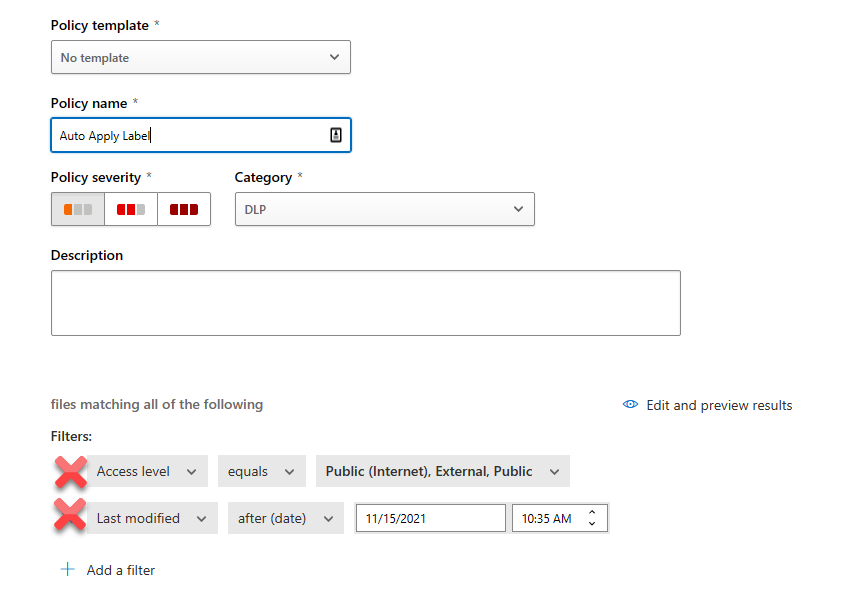
Option 1 to achieve this is a Defender for Cloud App (Formerly MCAS) File Policy. To make this feature work, you need to have gone through the prerequisite of connecting up MCAS to perform file scanning with Sensitive Labels. After that is done, we can create a File Policy. Next, name your policy and remove the default filters.
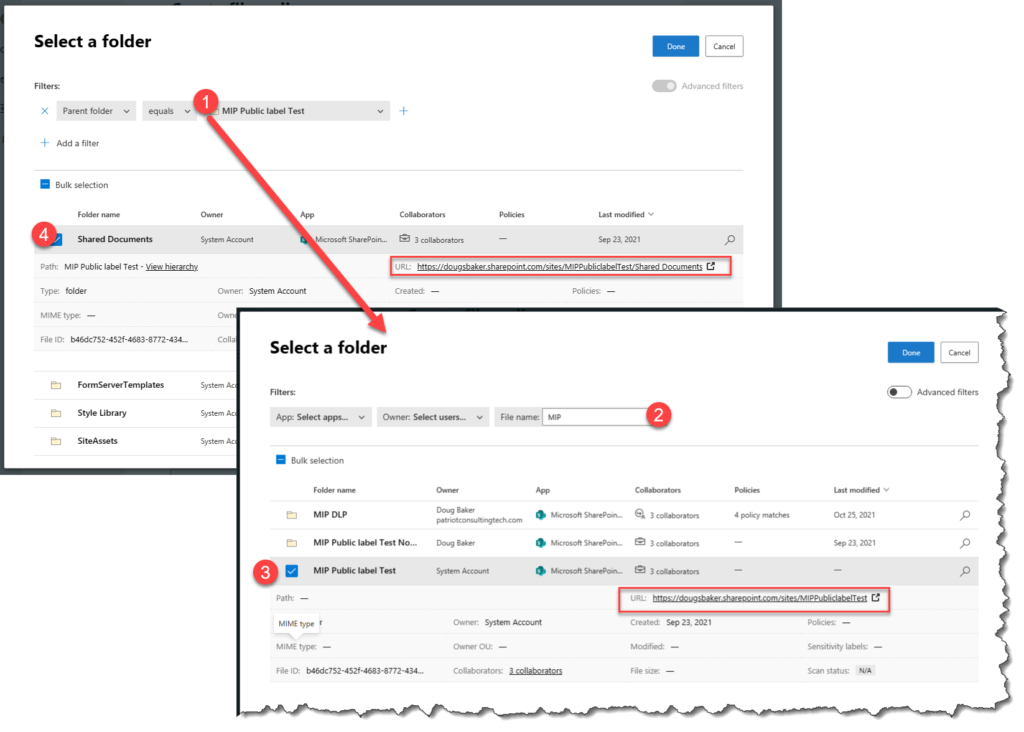
Next select “Appy to” and choose selected folders. In the add Folders area search for the SPO Root Site / Document Library Root Site. If it is not showing when you search by name you may need to use Advanced Filters. To do this, switch to the Advanced option and select and Parent Folder. In the new search that comes up, we can search for the SPO site we want. After that, we can then select Root Shared Documents Library or any other custom Library.
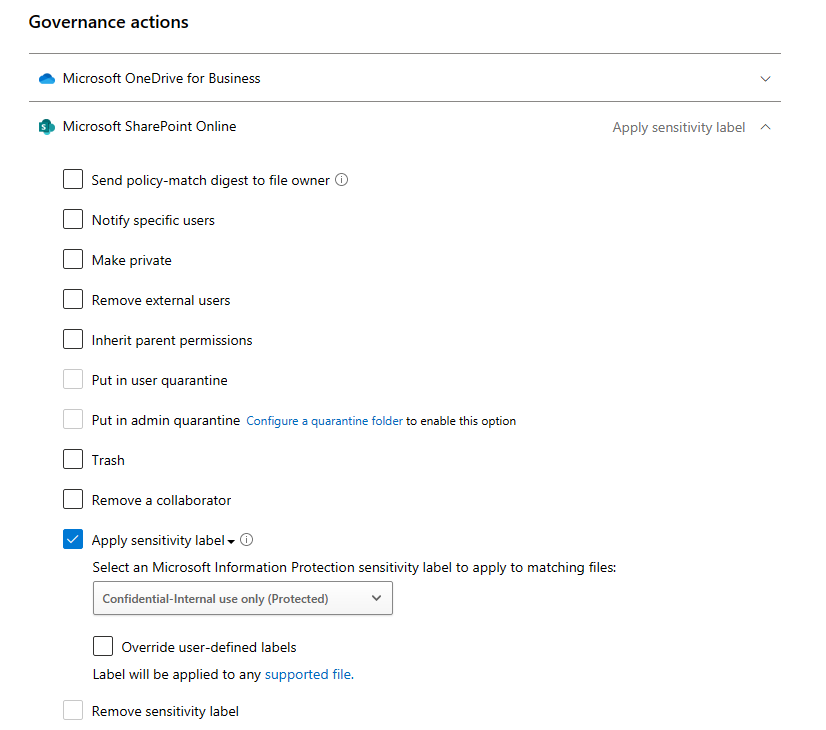
Finally, we need to select the governance action of Apply a Label. Here is one of the interesting options we get in via this portal, in MDCA we can choose to override the user’s choice. This is definitely a benefit to keep in mind as this is a unique option in MDCA.
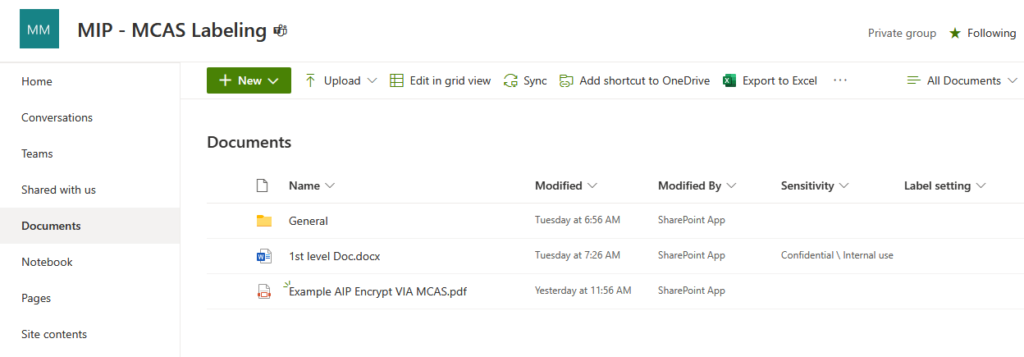
When this is working, files in your site will eventually be updated to use your label. Run time takes roughly two hours in my site to make the change happen. Another item that is worth noting, is that if you are using MDCA to label you can apply labels to PDF’s. Also be aware that MDCA Updates the Last modified by to be the SPO Site. Additionally, if you have not enabled Co-Authoring with Sensitive Labels you will not be able to open the file via Web Browser.
MIP Auto-Labeling
Option 2 is to use Auto Labeling in the Compliance Center. This is a great feature, and typically I recommend orgs use this with its built-in function of classifying based on the detected data in the file. However, for many customer scenarios, they don’t have a specific data type in their files. So to make it apply to a whole SharePoint library we need to game this technology.
The First Step in this is to create a Custom Sensitive Info Type(SIT). In this case, we will essentially need to create a label that detects any data. For this, you will create a custom item I usually label as “All Data”. Under Compliance Select Sensitive Info. next Create a new data type and call it “All Data” In the next area we will add a regex [a-zA-Z 0-9]+ , Please note this can be adjusted to be more inclusive.
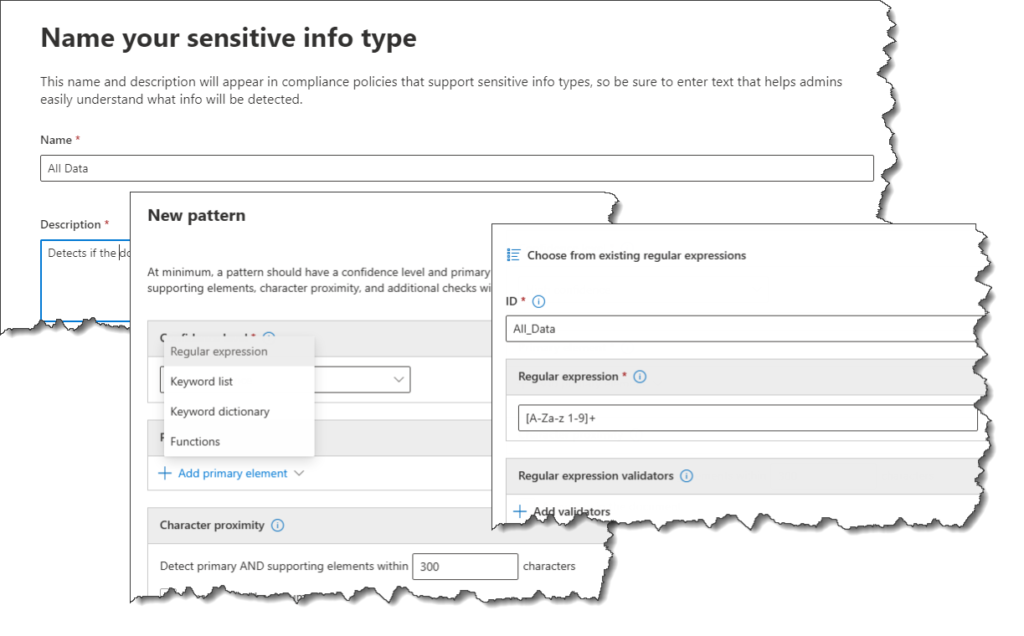
This is the Secret Sauce, this Regex essentially will hit on any file that has any content. This allows us to use the Auto-Labeling engine and target an SPO Site. We will need to create a new policy scoped to our SPO site, once scoped simply use our new “All data” and we will be all set.
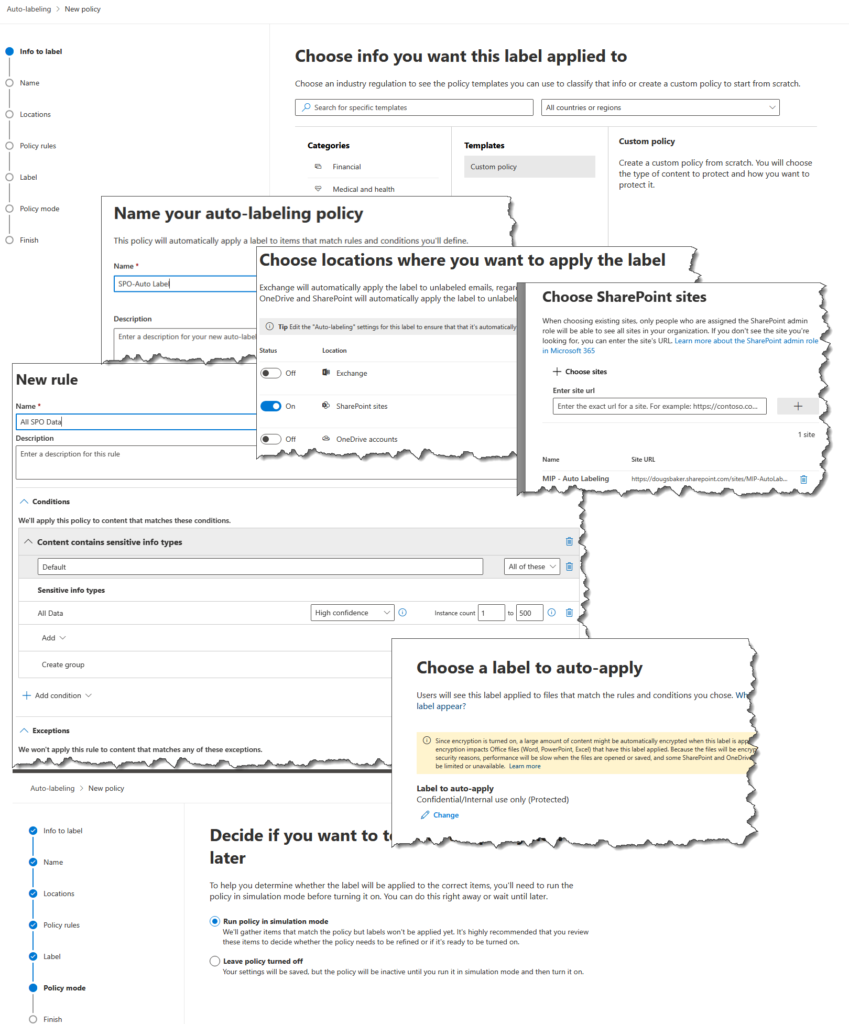
This engine runs very fast and once you have gone through your test phase you will be able to label files very quickly. This Auto-Labeling works roughly in 15 minutes in my tenant. The other benefit is that it keeps the last modified using the same user that last touched the file. The downside is PDF files are not supported for labeling but if Co-Authoring is not enabled you will be able to open the labeled file in the Web.
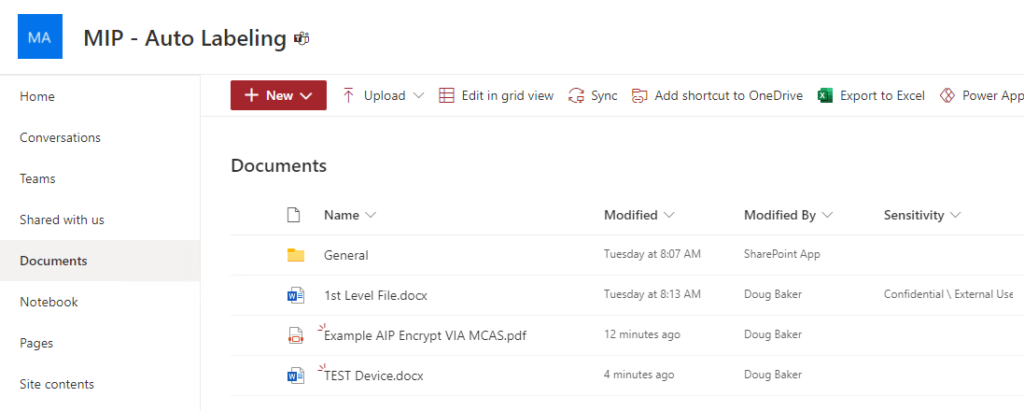
So there you go 2 options to label all the files in an SPO site. Hope this helps!